UI/UX Design Principles Every Website Needs in 2026
Introduction
There is a difference between a website that looks good in a screenshot and a website that works in real life.
I learned this the hard way on an early project. The mockups were clean. The client approved everything. We built it. Traffic came. And then the client called me two weeks later to say nobody was filling in the contact form. I went through the site as a regular user, not a designer, and I found three separate points where a normal person would abandon the process. A confusing field label. A button that did not look clickable. A confirmation message that appeared above the fold but the form was below it, so the user never saw it.
The design was beautiful. The UX was broken.
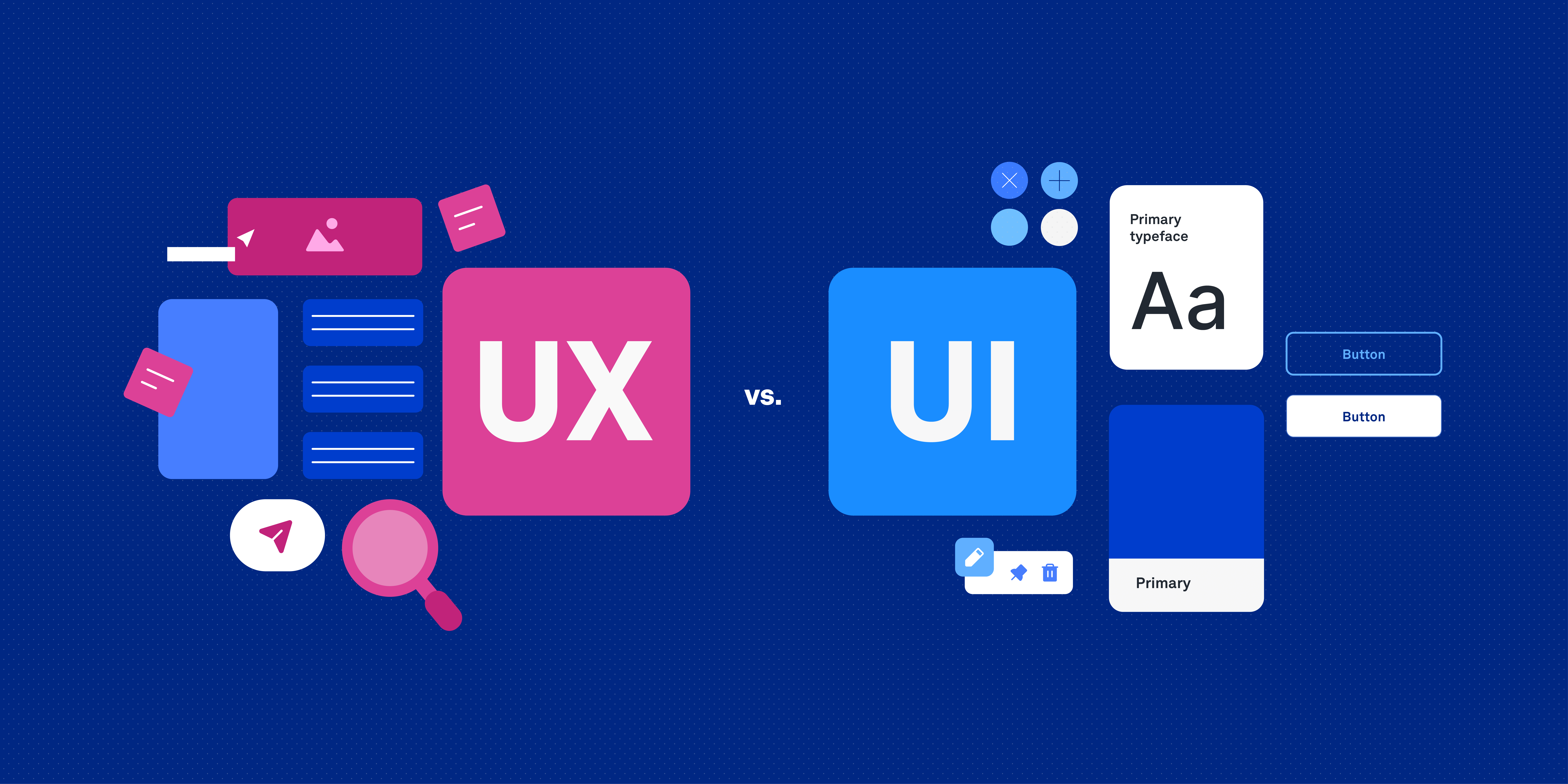
UI and UX are two disciplines that live on the same website but solve different problems. Understanding the difference, and applying the right principles for each, is what separates a website that earns from one that just exists.
This guide goes deep on both. You will walk away with a full set of principles you can apply to any website build, from a simple service site to a complex e-commerce platform.
What UI and UX Actually Mean
People use these terms interchangeably and it creates real problems in project scoping, brief writing, and client communication.
UI stands for User Interface. It is the visual layer of your website. Every element a user can see and interact with is part of the UI. Buttons, form fields, navigation menus, icons, typography, colors, spacing, imagery. These are UI elements.
UX stands for User Experience. It is the full journey a user takes through your website. The feelings they have, the questions they ask, the friction they encounter, the ease or difficulty of completing a task. UX is not something you can point at on a screen. It is what happens when a real person uses what you built.
A website can have a polished UI and a broken UX. Beautifully styled form fields that the user cannot figure out how to complete. A stunning homepage that makes it impossible to find the pricing page. An elegant navigation system that hides the most important link three levels deep.
The inverse is also possible. A plain, utilitarian site with a UX so clear and logical that users complete tasks without thinking. Craigslist held that position for years. Wikipedia still does.
Both disciplines matter. And the best websites get both right.
Core UX Principles That Apply to Every Website
Start With the User's Goal, Not the Business's Goal
Every UX process starts with one question: what does the user want to do when they land on this page?
Not what do you want them to do. What do they want to do?
These are often different things, and ignoring the gap is the cause of most UX failure. A visitor coming to a law firm's website wants one thing first: to know if this firm handles their specific type of case. The law firm wants to showcase their credentials and culture. If the site leads with a history of the firm and buries the practice areas, the user leaves before they find what they need.
The UX process starts with user research. For most small business sites, this does not require a massive study. Speak to five of your best clients. Ask them: what were you looking for when you first found us? What question did you need answered first? What almost stopped you from reaching out? Those five conversations will tell you more than any analytics report.
Map the user journey before you design a single screen. From first landing, to exploring, to deciding, to acting. Where do they arrive? What do they see? What do they need to know? What do they need to feel? What is the step that takes them from visitor to lead or customer?
Every design decision you make after that should serve the journey you mapped.
Reduce Friction at Every Step
Friction is anything that makes the user work harder than they need to.
A form with twelve fields when you only need three. A checkout flow that requires account creation before purchase. A call to action that says "Submit" instead of something that describes what happens next. A mobile menu that takes three taps to open. A page that loads in seven seconds on a 4G connection.
Every piece of friction costs you conversions. Some friction is unavoidable, collecting a delivery address before shipping a product is necessary friction. But most friction on most websites is unnecessary. It is there because nobody tested the site as a real user.
The discipline is to audit every step in your user journey and ask: does this step need to exist? If it does, can it be made easier? Can the instructions be clearer? Can the number of taps or clicks be reduced?
Amazon spent years reducing friction from their checkout. One-click purchase, saved payment methods, pre-filled delivery addresses. Each reduction in friction increased revenue. The same principle applies to a service business contact form, an e-commerce checkout, or a booking system.
Design for Clarity Before Aesthetics
When there is a tension between a design choice that looks interesting and one that is clear, choose clarity.
This is not a statement against beautiful design. Beautiful and clear are not opposites. But when they cannot coexist, clarity wins.
A dark gray label on a slightly lighter gray background might look subtle and sophisticated. It is also illegible for a large percentage of your users, including those with visual impairments, those viewing your site in bright sunlight on a phone screen, and older users whose contrast sensitivity has declined.
A creative font that requires effort to read might feel on-brand. It also increases cognitive load and slows reading. Users who have to work to read your copy are less likely to finish reading it.
The clearest test: show your website to someone who has never seen it before and has no connection to your business. Watch them try to find key information and complete a key action. Do not help them. Do not explain anything. Watch where they hesitate, where they look confused, where they give up. That is your UX problem list.
Establish Hierarchy in Every Layout
Every page has a most important element. The job of the layout is to make sure the user sees that element first.
Without a clear hierarchy, the eye does not know where to start. Everything competing for attention means nothing gets attention. The user skims, finds nothing compelling, and leaves.
Hierarchy is established through size, weight, color, position, and spacing. Your most important element should be the largest, or the most visually weighted, or placed where the eye naturally falls first, which is the top left of the screen for left-to-right reading languages.
On a homepage, the hierarchy is usually: headline, subheadline, primary CTA. Everything else is secondary. The hierarchy should be so clear that a user knows the most important thing on the page within two seconds of landing, without reading a word.
On an interior page, the hierarchy shifts to match the purpose of that page. A service page: what is the service, what does it include, what does it cost, how do I get it. A blog post: headline, introduction, subheadings that chunk the content. A product page: product name, images, price, buy button, then description and reviews.
Feedback and System States
Users need to know what is happening when they interact with your site.
A button that does not change when you click it feels broken. A form that submits and shows no confirmation message leaves the user uncertain whether it worked. A page that loads slowly with no loading indicator feels frozen.
Every interactive element should have a clear state for: default, hover, active/pressed, disabled, and loading. Every action that takes time should show progress. Every form submission should confirm success or explain errors clearly.
Error messages deserve special attention. Generic messages like "An error occurred" are useless. The user needs to know what went wrong and what to do about it. "Please enter a valid email address" is useful. "Error 400" is not.
Core UI Principles That Apply to Every Website
Build on a Consistent Design System
A design system is a set of reusable components and rules that govern how every element on your site looks and behaves.
Without a design system, a website becomes inconsistent over time. Different sections get built by different people or at different times. Buttons look slightly different on different pages. Heading sizes vary. Spacing is inconsistent. The user experiences the site as feeling slightly off without knowing why.
A basic design system for a website includes: a type scale, a color system, a spacing scale, a set of UI components (buttons, form fields, cards, navigation, modals), and usage guidelines for each.
The type scale defines every text size you will use and the purpose of each. For example: display heading, page heading, section heading, subheading, body large, body regular, body small, caption. Each size should have a defined line height and weight for both desktop and mobile.
The color system defines every color in your palette and its purpose. Primary, secondary, background, surface, border, text colors. Each color should have a clear role. When a designer or developer knows that Primary is used for CTAs and active states, and only for those things, the site maintains visual consistency.
The spacing scale should be based on a base unit, typically 8px, with increments that multiply from it. 4, 8, 12, 16, 24, 32, 48, 64. Using only these values for margin, padding, and gaps creates a visual rhythm that users feel even when they cannot articulate it.
Typography Must Work Harder Than It Looks
Typography is a functional tool, not a decorative one.
The font you choose affects readability, perceived brand personality, loading speed, and accessibility. Every typographic decision should be justified on these grounds.
For body text, readability is the primary criterion. The font must be legible at small sizes, comfortable to read across paragraphs, and render well on screen. Georgia, Merriweather, Inter, and Source Serif Pro are reliable choices. Decorative or display fonts should never be used for body copy.
For headings, you have more freedom to introduce personality, but the font must still be clear and appropriately sized for the hierarchy level it represents.
Font loading has performance implications. Google Fonts are convenient but add an external request. Loading a font in multiple weights adds file size. The discipline is to choose one or two font families and load only the weights you actually use. If you are loading a variable font, you can access the full weight range with a single file request.
Web typography standards that matter:
Line height for body text should be 1.4 to 1.6. Below 1.4, lines feel cramped. Above 1.7, they feel disconnected.
Paragraph width for comfortable reading is 55 to 75 characters per line. Wider than this and the eye struggles to track from the end of one line to the beginning of the next. Narrower and the reading rhythm feels choppy.
Letter spacing, called tracking in print, affects readability at different sizes. At large display sizes, reducing tracking slightly improves appearance. At small body sizes, normal or slightly increased tracking improves legibility.
Color With Intention
Every color in your palette should have a defined purpose. When you add colors to a design system without rules for how they are used, the result is a site that feels visually noisy and unresolved.
The 60-30-10 rule is a practical starting point. 60% of your visual space uses your background or neutral color. 30% uses your secondary color for structure and support. 10% uses your primary or accent color for emphasis, CTAs, and key highlights.
This ratio creates visual balance. It also makes your CTA color feel significant because it is rare. If your accent color appears everywhere, it loses its power to direct attention.
Contrast is not optional. Body text requires a minimum contrast ratio of 4.5:1 against its background to meet WCAG AA standards. Large text, above 18px or 14px bold, requires a minimum of 3:1. These are not arbitrary standards. They reflect the range of visual capability across your actual user base.
Color carries semantic meaning in interface design. Red typically signals error or danger. Green signals success or confirmation. Yellow signals warning. Using these colors for decorative purposes introduces confusion. If a user sees red text, they assume something is wrong. Surprise them with red as a decorative color and you introduce friction.
Spacing and Whitespace Are Active Design Tools
Whitespace is not empty space that you forgot to fill. It is a design element as active as any button or image.
Generous spacing around elements makes them feel important. Tight spacing makes the page feel cluttered and anxious. The amount of whitespace you apply to different elements communicates their hierarchy and relationship.
Related elements should sit close together. Unrelated elements should breathe. A section heading and the paragraph that follows it should have less space between them than the heading has above it, so the eye understands that the heading and paragraph are a unit.
Consistent spacing, based on your spacing scale, is what makes a design feel resolved rather than assembled. When two designers build different pages of the same site using the same spacing scale, the pages feel like they belong together even though they were designed separately.
Padding inside components should be generous enough for the component to feel open but compact enough to keep the content dense and scannable. Cards with too little padding feel claustrophobic. Cards with too much padding waste screen space.
Interactive Elements Must Be Obvious
Every element a user can click or tap should look like something they can click or tap.
This sounds obvious. It is routinely ignored.
Buttons should look like buttons. They should have a background, a clear boundary, and a visual weight that separates them from body text. Flat design has pushed many sites toward buttons that look like text links, and text links that look like buttons. The confusion costs conversions.
Links in body text should be underlined, or at minimum a clearly different color with sufficient contrast. Underlining is the default and the most universally understood affordance for a link. Removing underlines from links requires you to make the color contrast strong enough to communicate interactivity without the visual cue, which is harder than it sounds.
Hover states provide feedback before the user commits to a click. Active states confirm the click happened. Focus states, indicated by an outline or highlight, communicate keyboard navigation to users who cannot use a mouse. All three states must be designed, not left to browser defaults.
Touch targets on mobile must be at least 44 by 44 pixels. Smaller than this and a significant portion of users will mis-tap. On a form with closely spaced options, insufficient touch target size is a direct cause of user error and abandonment.
Applying UI/UX Principles to Real Website Sections
Homepage
The homepage has one job: communicate who you are, what you do, who it is for, and what to do next within five seconds.
The hero section should have a clear headline that speaks directly to the user's problem or goal. Not a mission statement. Not a tagline. A specific statement that the user recognises as describing their situation or what they want.
Below the hero, social proof. Logos of clients, industries served, a testimonial with a real name and face, a number that communicates scale or success.
Then a brief overview of what you offer, structured as outcomes for the user rather than features of your service.
Then a secondary CTA.
No homepage needs more than this to convert cold traffic. Everything else is distraction.
Service Pages
Each service gets its own page. The structure: what the service is, who it is for, what the process looks like, what the outcome is, evidence it works, and a CTA.
Avoid feature lists without outcomes. Nobody cares that your SEO service includes "keyword research and on-page optimisation." They care that their website will rank higher and bring more relevant traffic. Lead with the outcome.
Contact and Enquiry Pages
Remove every field that is not essential. Name and email is usually enough to start a conversation. Every additional field reduces completion. If you need more information, get it in the first email exchange.
Specify what happens after the form is submitted. "We will respond within one business day" manages expectations and reduces anxiety.
Common UI/UX Mistakes to Avoid
Hiding the navigation on desktop to look minimal. Mobile-first navigation patterns like hamburger menus are not appropriate for desktop. On desktop, users expect visible navigation.
Using low-contrast text for aesthetic reasons. The designer chose it on a bright MacBook screen. The user sees it on a phone in sunlight and cannot read it.
Auto-playing video with sound. This breaks focus, causes users to scramble for mute, and destroys the experience on mobile.
Infinite scroll with no footer. Users cannot reach footer links. They cannot get to your contact information. They feel trapped.
Carousels on homepages. Users do not interact with them. The second and third slides are almost never seen. The first slide is the only slide that matters. Use the space for something static that communicates your key message.
Popup forms that appear before the user has read a single sentence. You are asking for trust before you have given any reason to trust you.
Conclusion
UI and UX are not interchangeable and they are not optional.
A beautiful interface that confuses users fails. A logical user journey built on a visually inconsistent interface fails to build trust. You need both.
The principles in this guide are not a checklist you run through once. They are a lens you apply continuously throughout the design process and after launch. Every time a user fails to complete an action, that is a UX signal. Every time someone tells you the site "looks off" without being able to explain why, that is a UI signal.
Build from user goals. Reduce friction. Design for clarity. Test with real people on real devices.
That is what separates the sites that work from the ones that look good in portfolios.
Ready to Build a Website That Actually Converts?
JetherVerse designs and builds websites with UI/UX at the foundation, not added on at the end. Based in Benin City, Nigeria, we work with businesses across West Africa, the UK, and Europe.
- Email: info@jetherverse.net.ng
- Phone: +234 915 983 1034
- Website: www.jetherverse.net.ng